
Telephone Call Data Records (CDR) Database
with Targeted Phone Numbers
Background
Telephone call data records contain a list of phone calls, people, which phone numbers they own, and a list of target telephone numbers. To create the database:
- We imported the call data records into Sentinel Visualizer’s database.
- We imported the targeted phone numbers.
For more information on this database, watch:
Objective
There are lots of targeted phone numbers to investigate. Where do we start? It’d be ideal to know if any of them call each other directly or through other phones that are not in our targeted list.
Sentinel Visualizer Analysis
1. On the Sentinel Visualizer Home Page, click [Entity Search] located in the Search panel.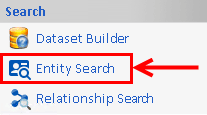
2. Click the [Advanced] button.
3.Click the [Metadata/Lookups] tab. In the Metadata Type drop-down, choose Targeted. In the Entity Type drop-down, choose Yes and click [Search].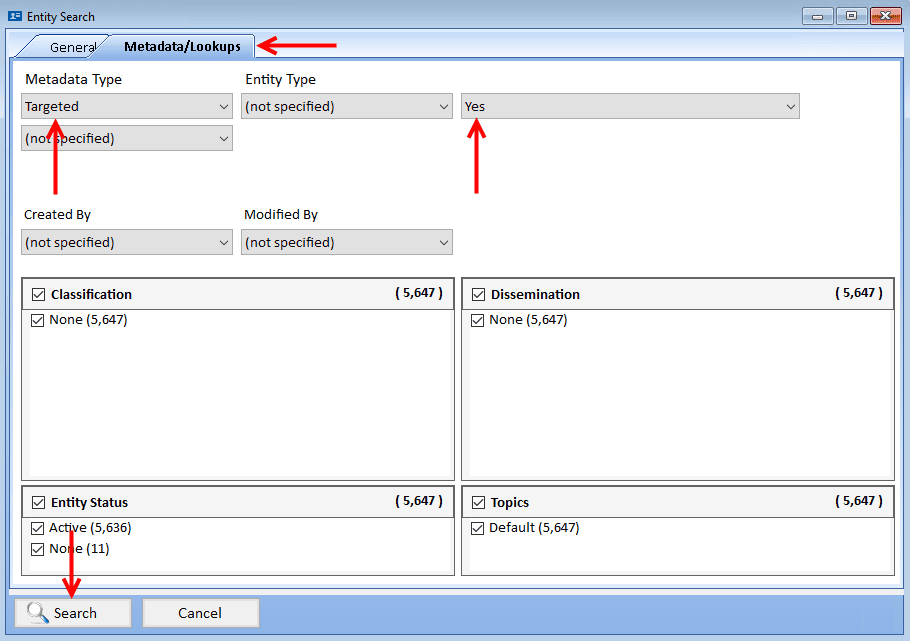
4. Sentinel Visualizer displays the 74 phone numbers that are targeted. Click [All to Visualizer] located at the bottom of the Entity Search page.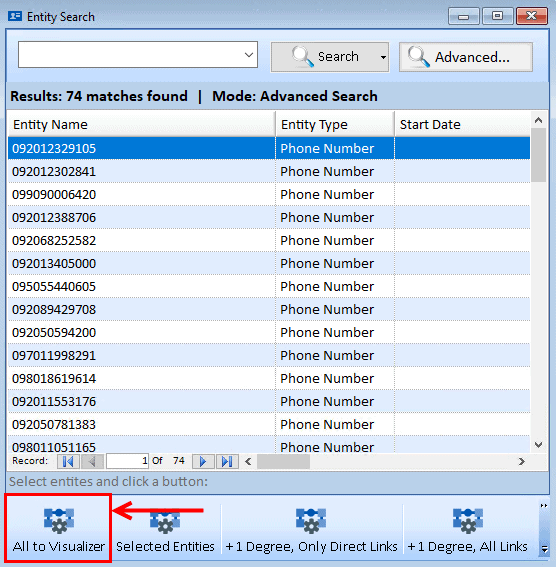
The 74 targeted phone numbers are displayed on a diagram in the Visualizer: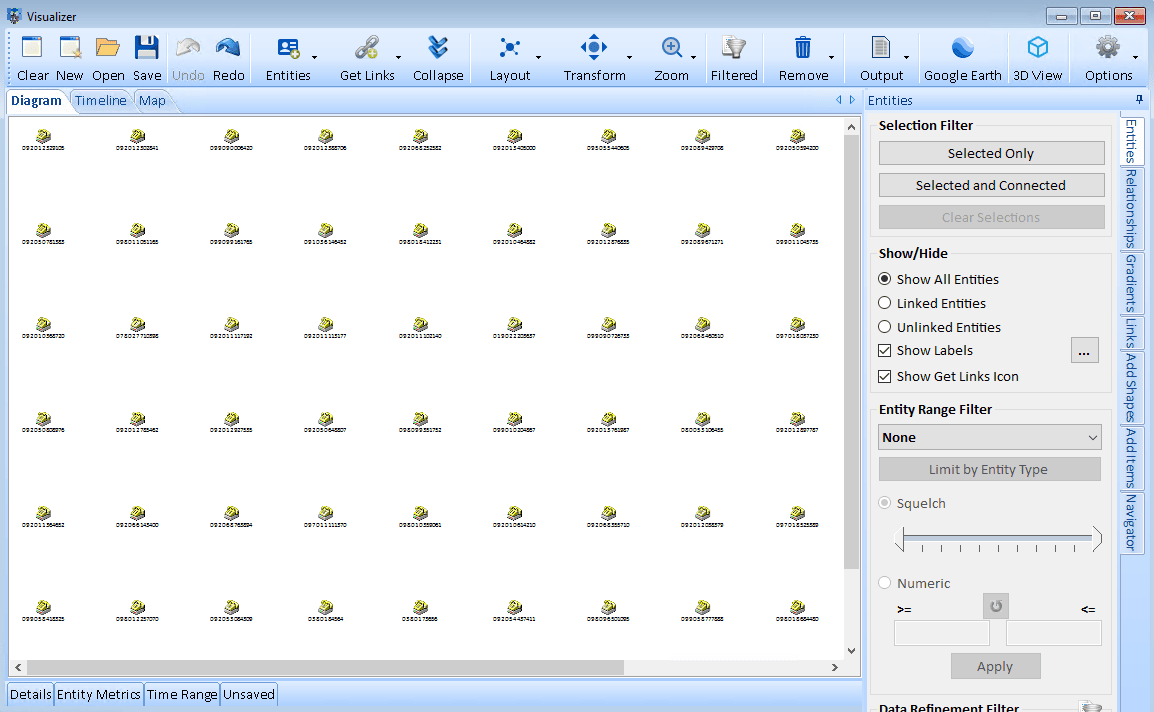
5. Click on the diagram and press [Ctrl + A] to select all entities. The selected entities are highlighted in green.
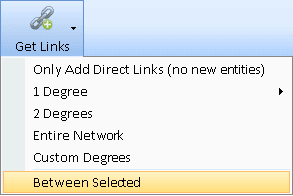
6. Click the [Get Links] button on the toolbar and select [Between Selected]. Between Selected allows you to select multiple entitles to add the fewest entities and relationships connecting them.
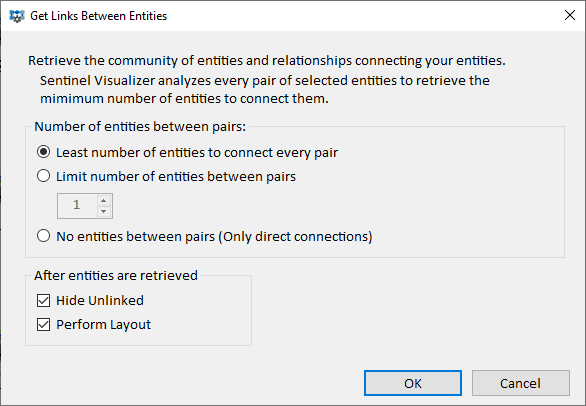
Select the ‘Least number of entities to connect every pair’ option and click [OK].
 |  |
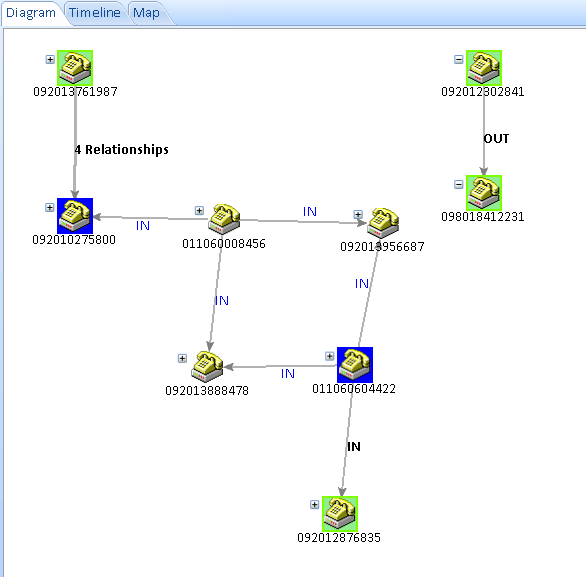
The diagram shows two targeted numbers and added five entities to connect a different pair of targeted numbers.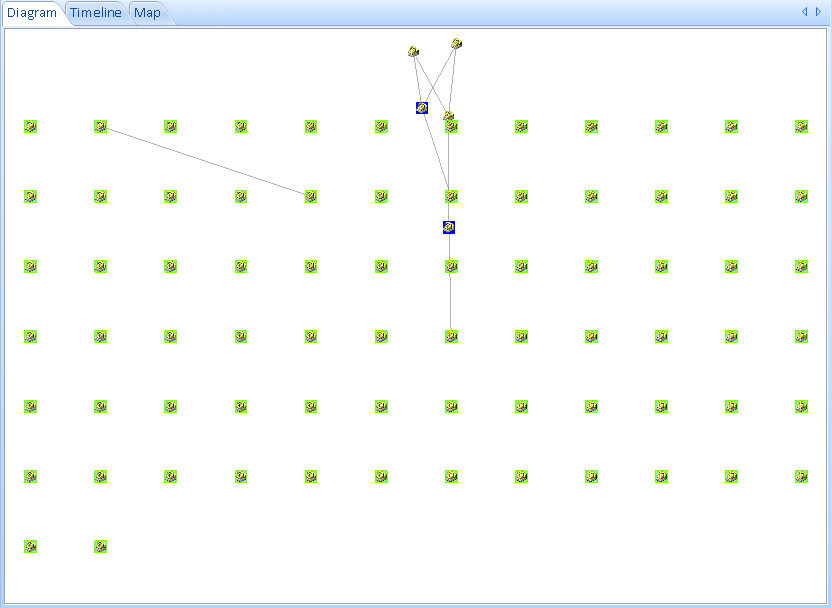
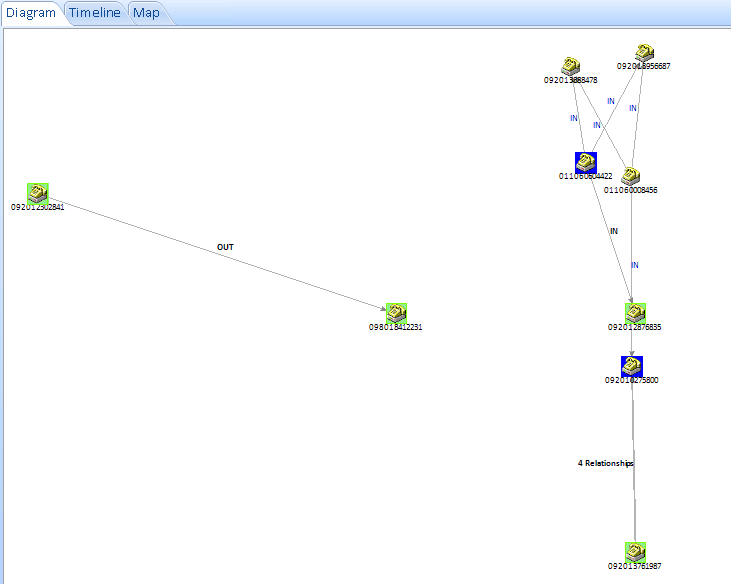
7. To only view the phones connected to targeted phones, click the [Entities] tab and select ‘Linked Entities’ in the Show/Hide panel. These are the most suspicious phones in your database.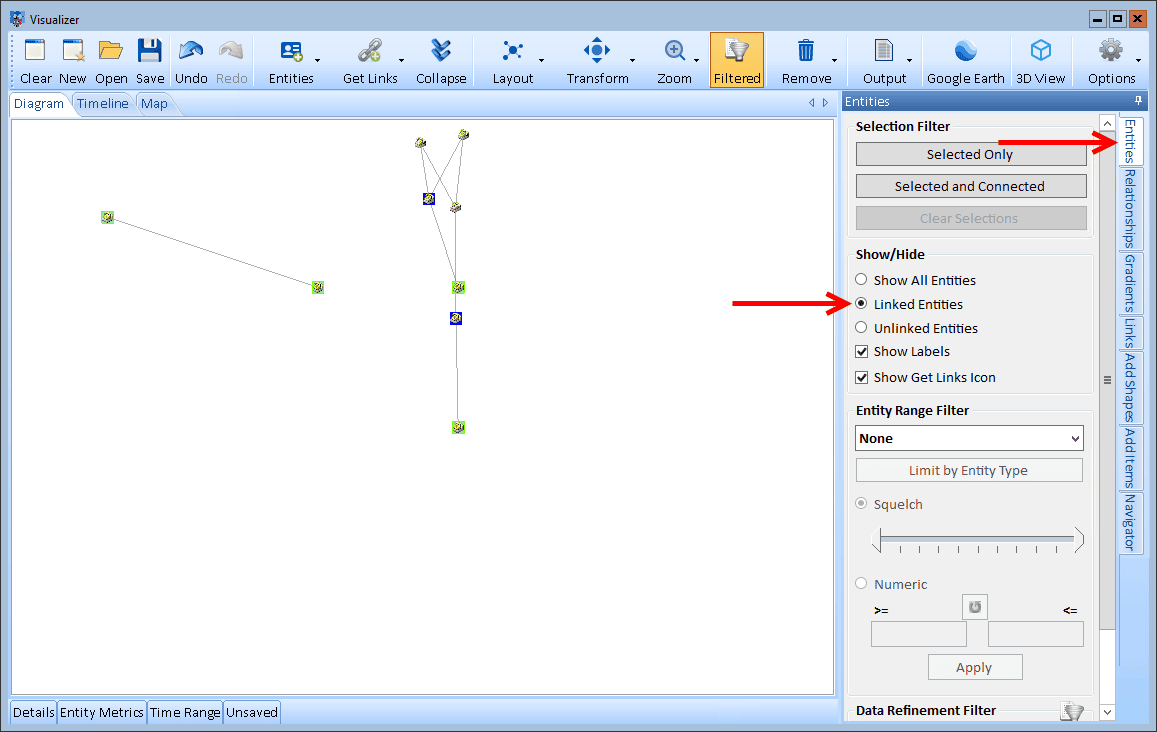
8. Optional: To view the entire diagram on the screen, select the [Zoom] button from the toolbar and select [Fit to Page].
 |  |
9. Sentinel Visualizer offers a variety of automated layout functions that make it easy to quickly organize networks into different configurations. Visit Sentinel Visualizer’s for more choices.
Click the [Layout] drop-down on the toolbar, select [Incremental] and click [Tiled Networks] to see the two disconnected networks more clearly:
 |  |
Results
From the original list of 74 targeted phone numbers, Sentinel Visualizer’s advanced analytics quickly revealed the most suspicious ones. This helps you prioritize your limited time and resources on the highest priority suspects.
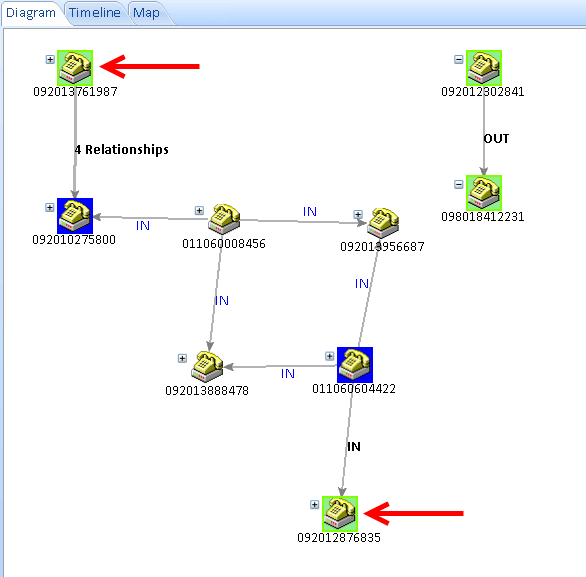
- Sentinel Visualizer discovered a pair of targeted numbers (ending in ‘1987’ and ‘6835’) do not call each other, but are connected through 5 intermediaries who are not in the target list. This suspicious group warrants further investigation:

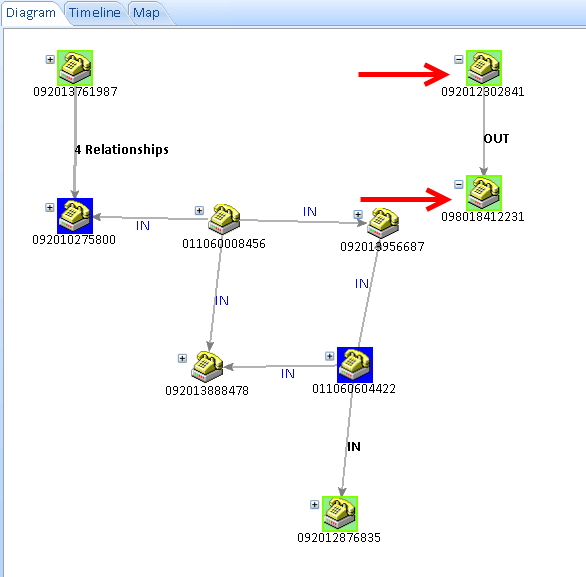
- Sentinel Visualizer also discovered two of the targeted numbers are talking directly to each other:
Export the List of Phone Numbers (Entities) to Microsoft Excel
From the original call data records with thousands of phones and calls between them, and 74 targeted numbers, Sentinel Visualizer prioritizes the high value activity to two pairs of targeted numbers and adds 5 additional suspects. Start your investigations there. Easily export the 9 entities on your diagram into an Excel spreadsheet by clicking [Output] on the visualizer toolbar and select [Excel List of Entities].
 |  |